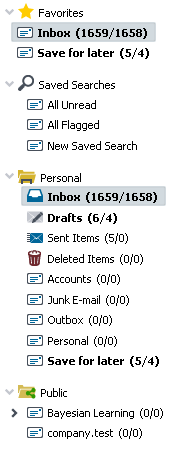
The Folder List is displayed on the left side of the page. To view the contents of a folder, click it. There are six types of folders in Webmail: Email, Calendar, Contacts, Tasks, Notes, and Documents, and the Folder List shows the folders for the area you are working in — for example, your contact folders when you are viewing your contacts. The folders are grouped into Favorites, Saved Searches, Personal Folders, Shared Folders, and Public Folders. If you have connected a cloud storage account in Cloud Apps, its folders are listed with your Documents folders. You can create folders, manage them, share them with other users, and configure various folder options in the Folders settings. You can also use Filters to automatically sort messages into specific email folders as each message arrives.
Add any folder to Favorites for quick access. Saved Searches are email searches that you can run at any time by clicking the name of the search. To create one, click New Search next to the Saved Searches heading, or save a search from the search feature in the message list. There are also options for saved searches in the Folders settings.
Right-click any folder to open a shortcut menu of actions for that folder, such as Add to Favorites, Set Nickname (for a favorite), New Sub Folder, Rename Folder, Share Folder, Delete Folder, Mark all Read, Empty Folder (or Empty Trash), and Exclude from Search All. In the Pro theme, the menu also contains Import and Export for calendar and contact folders. You can rearrange your favorites, and move your personal folders from one parent folder to another, by dragging them to the desired positions. In the Pro theme, you can also rename a folder, or give a favorite a nickname, by clicking it a second time shortly after selecting it.
See Also