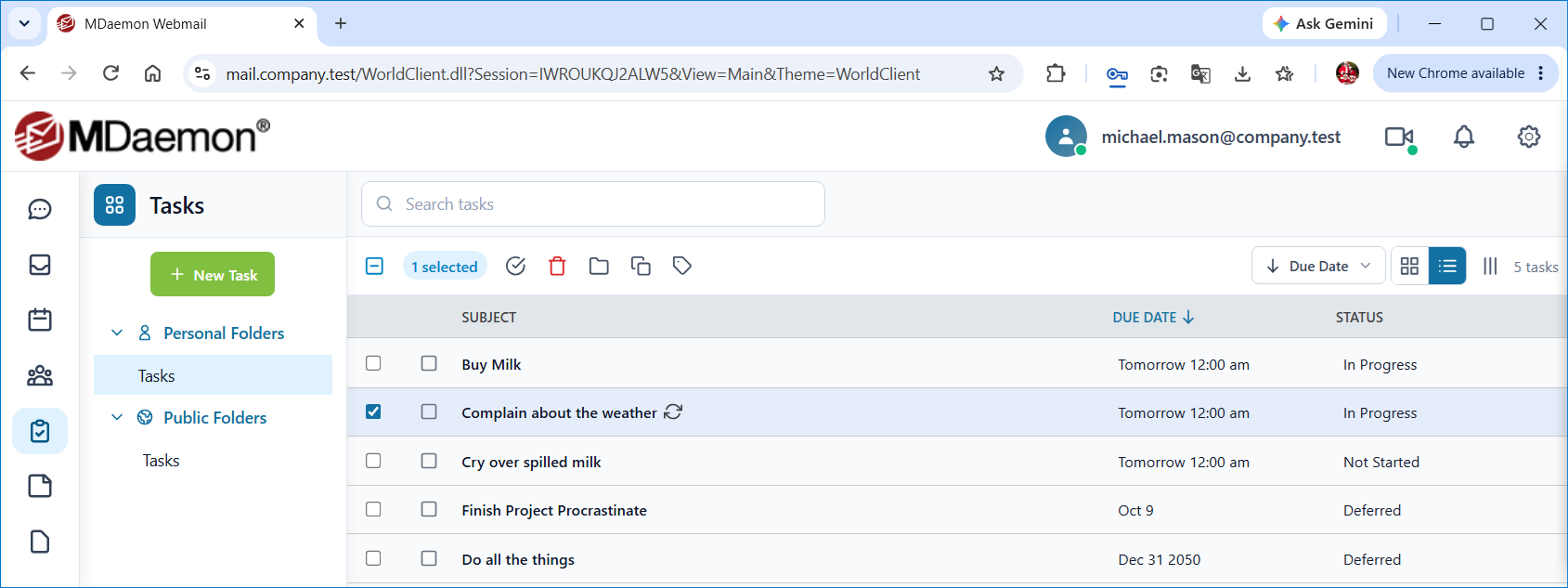
Tasks allow you to create a list of tasks, projects and to-do items. You can sort tasks by Subject, Due Date, Start Date, Priority, Status, and Categories (use Sort tasks in the WorldClient theme). In WorldClient you can also switch between Card view and List view, and use Customize Columns to choose the columns in List view. To mark a task as completed, click the Mark Complete circle next to it (in Pro, tick the check box in the % Complete column).
In the WorldClient theme, click a task to display its details beside the list, or double-click it to open it in a new window. In Pro, click a task to open a preview of it. If you have turned off Display Previews in your Personalize settings, clicking a task opens it in the Task Editor right away. Right-click a task for options such as Edit, Edit in New Window, Move to Folder, Copy to Folder, and Delete. If you do not have editing permission then the save button will be disabled and you will not be able to change the task's details.
Adding and Editing Tasks
To create a new task, click New Task. To edit a task, click it and then click Edit, or right-click it and choose Edit.
Task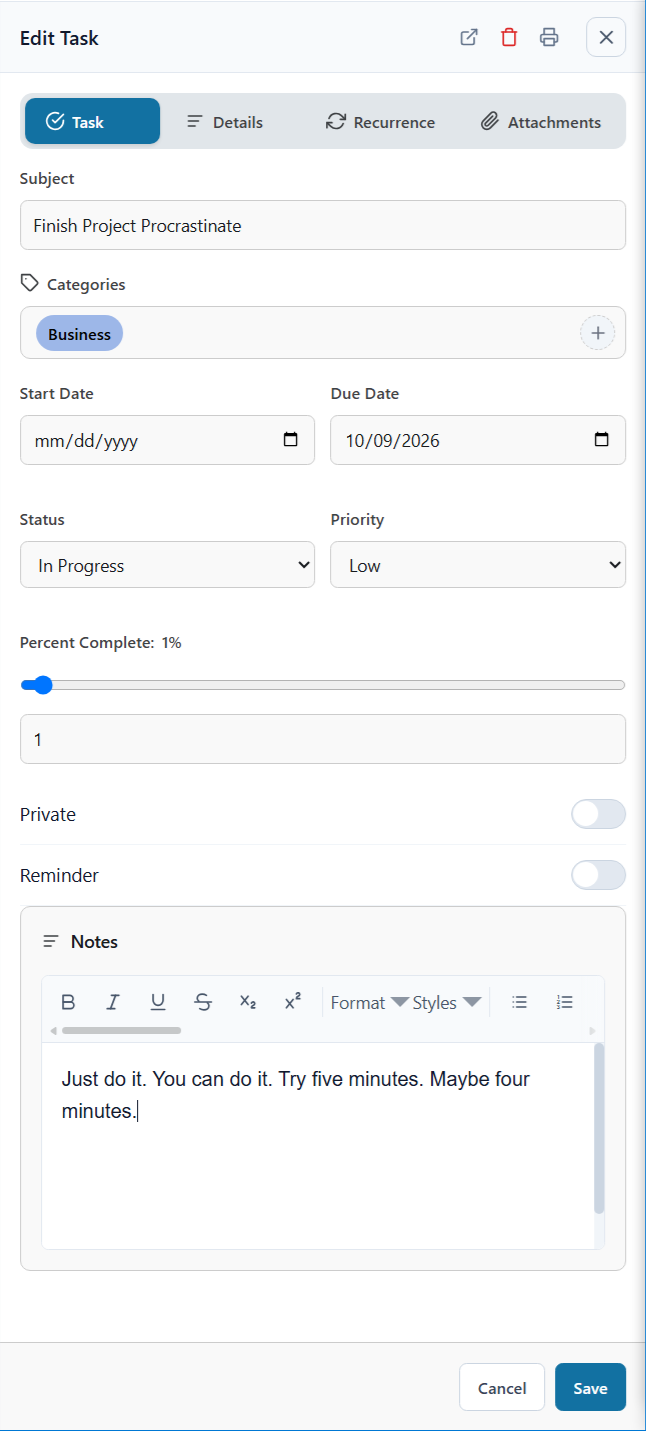
Each task entry must have at least a Subject, and you can further specify due dates, start dates, the status of the task, assign categories, set its priority in relation to all tasks in general, as well as how complete the project is.
The Task tab of the Task Editor displays the primary components used in tasks:
Subject - the main description of the task, this will appear on the Task List.
Categories - The categories that this task may be labeled as. Click Add categories to choose categories, or Edit categories to manage your list of categories.
Start Date - The date that the task was or will be started.
Due Date - this is the date by which the task should be completed.
Status - the current state of the task in general. This drop-down list gives you the following status options: Not Started, In Progress, Completed, Waiting, and Deferred. If the status is changed to Completed, Webmail will automatically change Percent Complete to 100% and fill in the Completed Date.
Priority - The importance of the task, this drop-down list gives you the following options: Low, Normal, and High.
Percent Complete - Specify a number between 0 and 100 representing the estimated percentage of the task that has been completed. Setting it to 100 changes the status to Completed.
Private - Click the private checkbox if you do not want anyone but you to be able to see this task. Otherwise users with Sharing access to your tasks folder will be able to view it.
Reminder - Turn on Reminder and choose the Date and Time you would like to be reminded about the task.
Notes - Use this area to write a longer description of the task as well as its requirements and specifications.
Details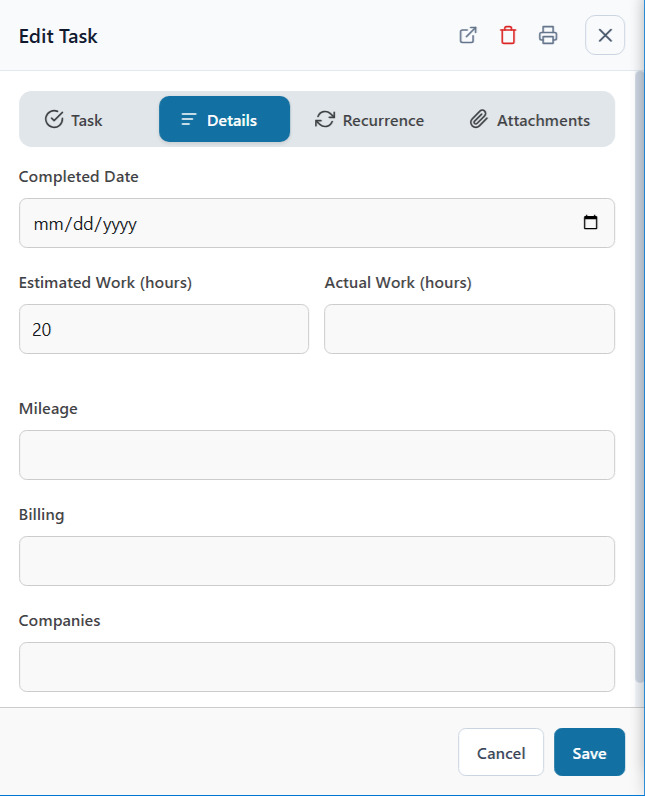
The Details tab of the Task Editor allows you to set extra details about this task and includes the following options:
Completed Date - You can keep track of the completion date by entering or selecting the date that the task was completed.
Estimated Work (hours) - The estimated amount of time in hours that should be required to complete the task.
Actual Work (hours) - Use this field to keep track of the actual hours that were required to complete the task. This can be compared to the estimated work figure above.
Mileage - Use this field to specify any mileage for travel that was required to complete the task.
Billing - Most often a billing code or project code for billing purposes.
Companies - The companies involved with this task. If a task involved multiple companies then they may be represented here for follow up.
Recurrence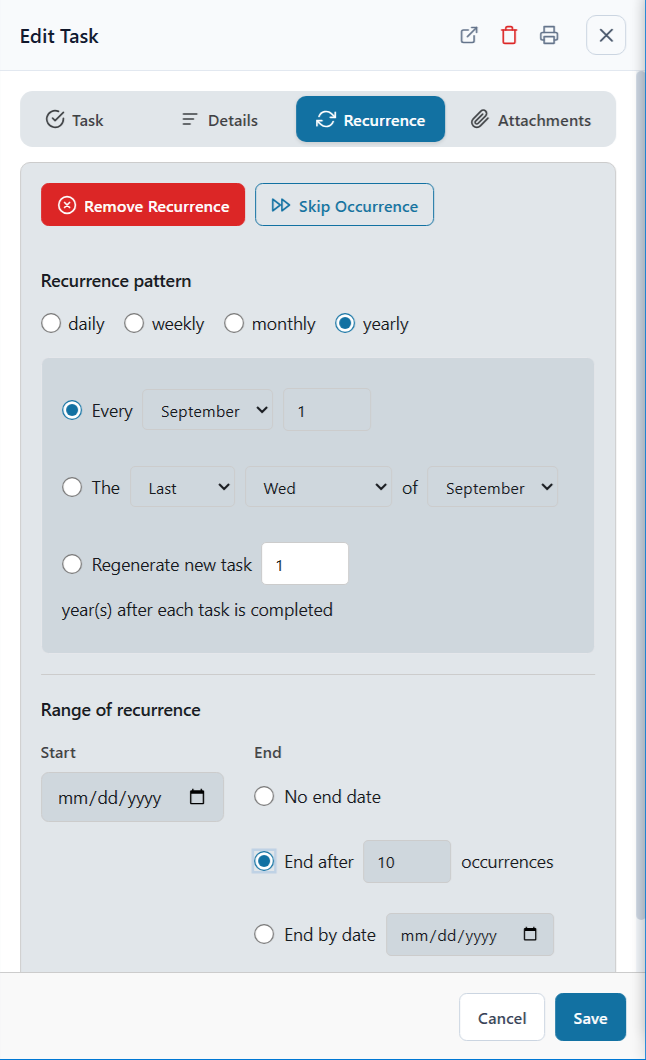
Use the Recurrence tab if you wish to make this a recurring task. Choose a Recurrence pattern (daily, weekly, monthly, or yearly) to display a variety of options that you can use to tailor the recurrence pattern to your needs. Choose Regenerate new task if you want the next task to be created a set number of days, weeks, months, or years after each task is completed. Use the Range of recurrence options to specify when the recurrence should start and when it will end: No end date, End after a number of occurrences, or End by date. Click Skip Occurrence to move the task to its next occurrence, or Remove Recurrence to stop the task from recurring.
Attachments
If there are any files relevant to the task, use the Attachments tab to attach them to it. Anyone who has access to the task will be able to download the attached files.
Synchronizing with a Smartphone or Email Client
Using ActiveSync
If your device is equipped with an ActiveSync client then you may be able to use that to synchronize your Webmail Tasks with the device. Follow the links below for instructions on how to synchronize your device with Webmail using ActiveSync:
ActiveSync may not be available for all users.
Using CalDAV
Many applications and devices, such as Apple Reminders on macOS and iOS and Mozilla Thunderbird, can synchronize with your Webmail tasks using CalDAV, if it is enabled for your account. In the application, add a CalDAV account using your email address and password. If the application asks for a server address, ask your email administrator for it.
Using MDaemon Connector
To synchronize your tasks with Microsoft Outlook, use MDaemon Connector, if it is supported for your account. Tasks created in either Microsoft Outlook or Webmail will be synchronized automatically.
See Also
