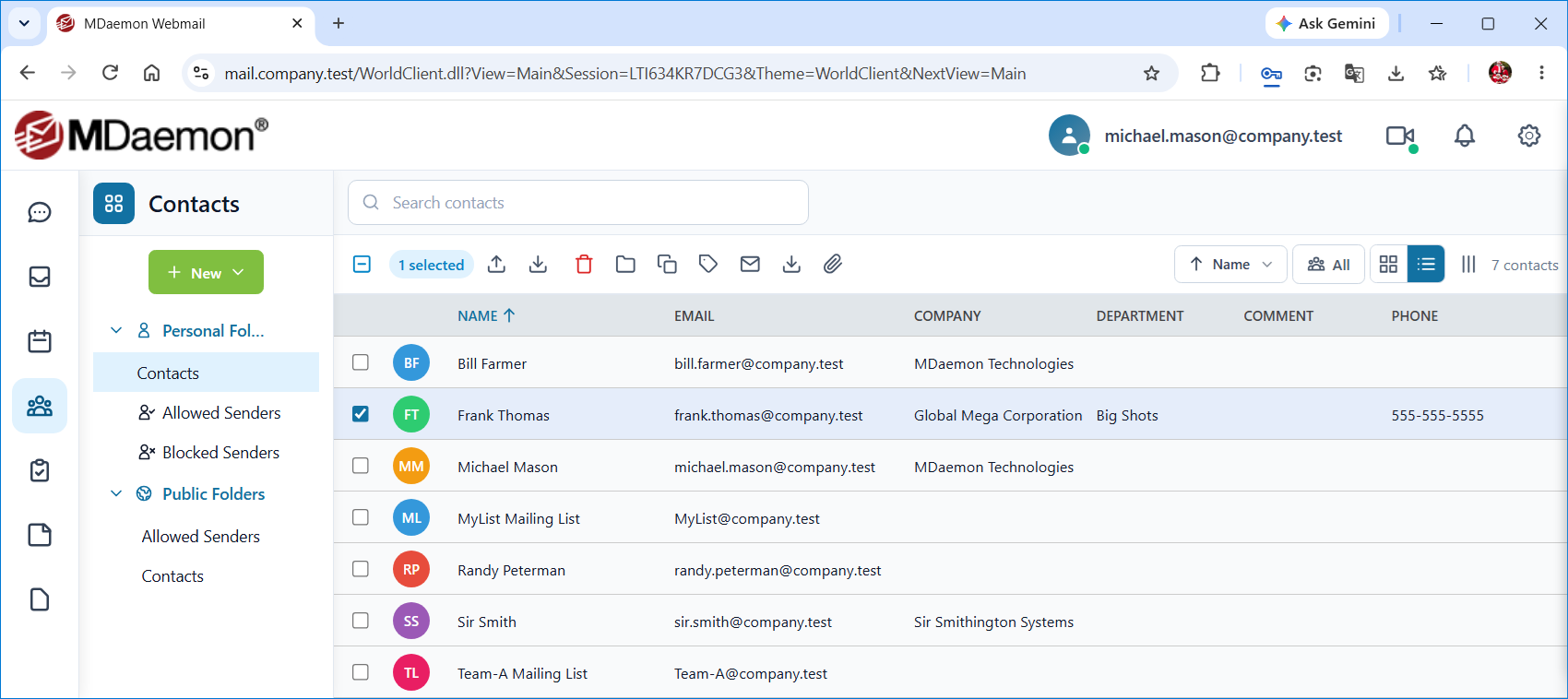
Webmail's contacts folders are useful for keeping track of email addresses, phone numbers, and other information for each of your contacts. To view your default Contacts folder, click Contacts in the navigation pane. The Folder List then shows your contacts folders, so you can select a different one, or you can create a new contacts folder (see Folders).
In the WorldClient theme, click a contact to display its details beside the list. The details include buttons to Edit, Edit in New Window, Delete, Send Message, Download vCard, and Send vCard. Double-click a contact to open it in a new window. In the Pro theme, click the contact to open a preview of it, with buttons to edit or delete it and a shortcut menu with other options, such as Copy, Move, Send Message, and Send vCard. In both themes, if you have turned off Display Previews in your Personalize settings, clicking a contact opens it for editing right away. If you don't have editing permission for the contact folder, the contact will be displayed with the save option and editing fields disabled. Right-click a contact to open a shortcut menu with contact-related options.
In the WorldClient theme, use Card view and List view to show your contacts as cards or as a list, and Customize Columns to choose the columns shown in List view. Click All (Show all contacts across folders) to see the contacts from all of your contacts folders at once, and use Sort contacts to change the order.
Creating a Contact
To add a new a contact in Webmail:
1.Click Contacts in the navigation pane.
2.Click New Contact (in WorldClient, click New and then New Contact).
3.Enter the contact's name, email address, and any other information you want to include.
4.Click Save.
To create a group of contacts that you can email together, click New and then New Distribution List. Enter a List Name, add members with Add member or Add From Contacts, and click Save.
In the WorldClient theme, when a contact has a Birthday or Anniversary, you can click Add to Calendar (the calendar icon) next to the date, in the contact's details or while editing the contact. Choose the Calendar and click Create Event to add a yearly, all-day event for it. If the event already exists in that calendar, you are told so instead.
Editing a Contact
To edit one of your Webmail contacts:
1.Click Contacts in the navigation pane.
2.Click the contact, and then click Edit. You can also right-click the contact and choose Edit.
3.Change the information that you need to alter.
4.Click Save.
Deleting a Contact
To delete a Webmail contact:
1.Click Contacts in the navigation pane.
2.Right-click the contact and choose Delete, or select one or more contacts and click Delete.
3.Click OK to confirm that you wish to delete the contact.
Searching for Contacts
You can search for specific contacts by typing all or part of any contact info in the search box above the list of contacts (Search contacts in the WorldClient theme) and pressing Enter. Webmail will filter the list of contacts, displaying only those with text that matches your criteria. To return the list to normal, click Clear Search or the X next to the search box.
Importing/Exporting Contacts
In the WorldClient theme, click Import Contacts above the contact list and choose the Import Type: Contacts (an Outlook CSV file), Groups (MDaemon export only), or vCard / VCF File. To export, click Export as CSV. In the Pro theme, right-click the contacts folder and choose Import or Export. You can also use the import and export options in the Folders settings.
Synchronizing with a Smartphone or Email Client
Using ActiveSync
If your device is equipped with an ActiveSync client then you may be able to use that to synchronize your MDaemon Webmail Contacts with the device. Follow the links below for instructions on how to synchronize your device with Webmail using ActiveSync:
ActiveSync may not be available for all users.
Using CardDAV
Many contact applications and devices, such as Apple Contacts on macOS and iOS and Mozilla Thunderbird, can synchronize with your Webmail contacts using CardDAV, if it is enabled for your account. In the application, add a CardDAV account using your email address and password. If the application asks for a server address, ask your email administrator for it.
Using MDaemon Connector
To synchronize your contacts with Microsoft Outlook, use MDaemon Connector, if it is supported for your account.
See Also
