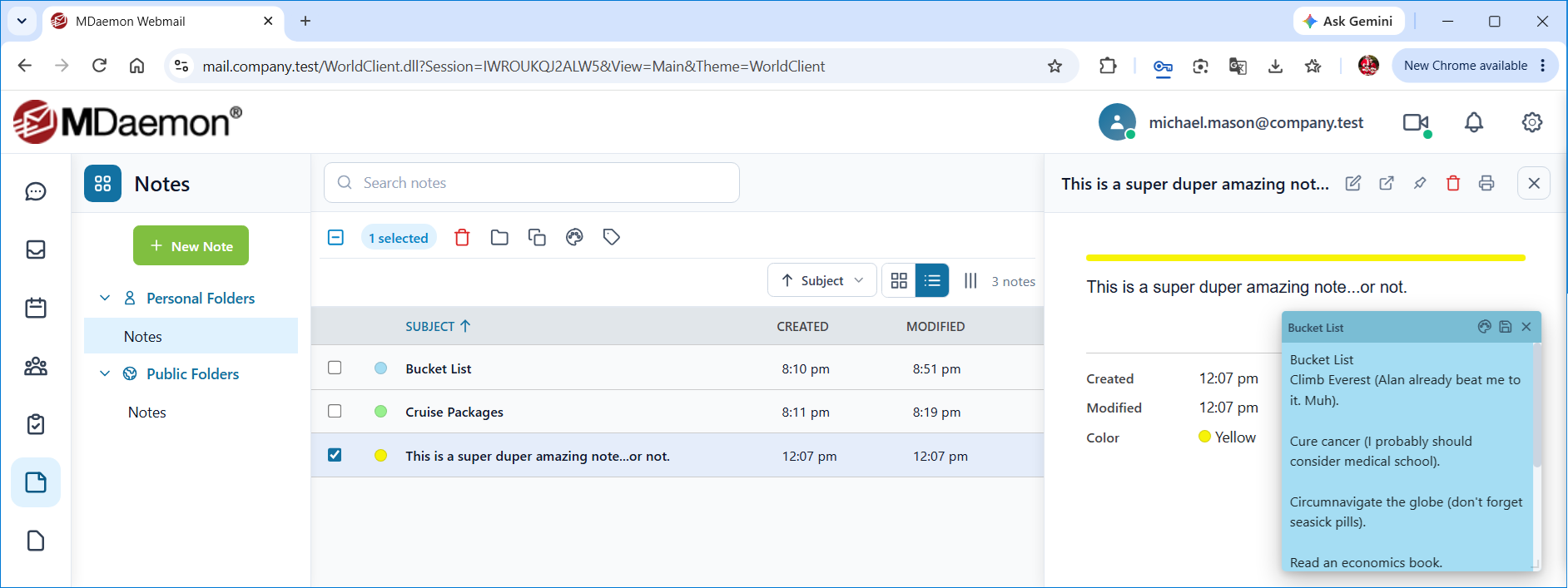
Notes allow you to create and manage text information that can be color-coded and associated with contacts and categories.
In the WorldClient theme, use Card view and List view to show your notes as cards or as a list, and Customize Columns to choose the columns in List view. Use Sort notes to sort by Subject, Created, Modified, Color, or Categories, and Search notes to find a note (click Clear Search to show all of them again).
Creating a Note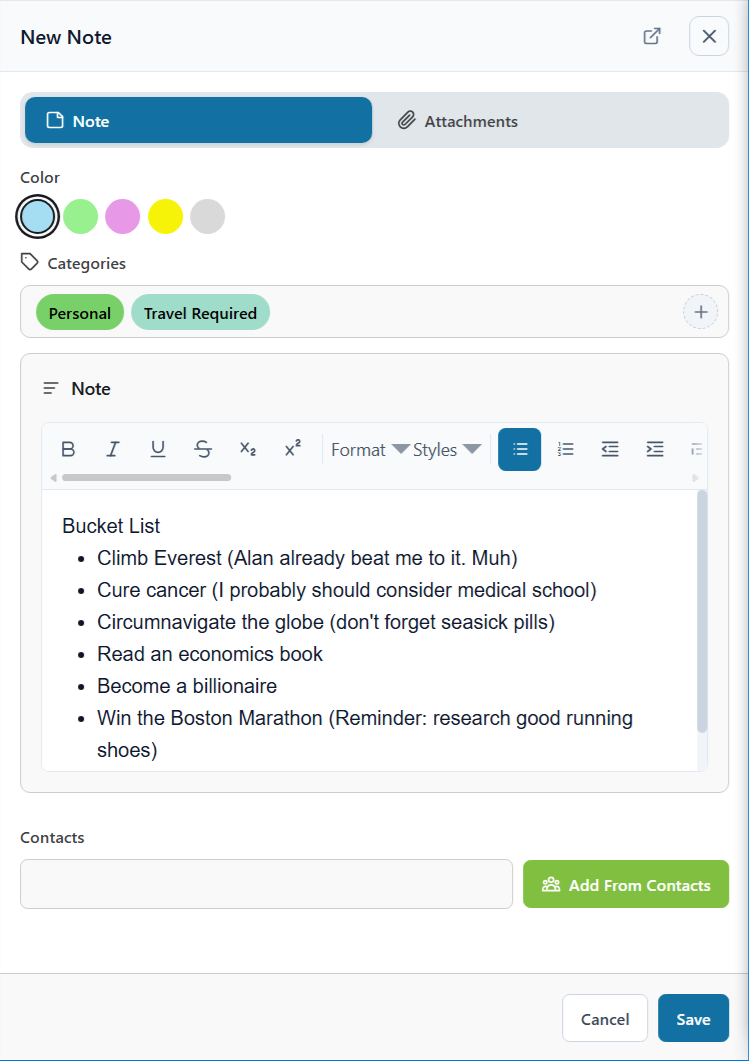
To create a note, click New Note, type the note, and then click Save. On the Note tab you can also choose a Color (Blue, Green, Pink, White, or Yellow), assign Categories (click Add categories or Edit categories), and associate the note with Contacts (type names or click Add From Contacts). Use the Attachments tab to attach files to the note.
Editing a Note
In the WorldClient theme, click a note to display it beside the list, and then click Edit, or right-click it and choose Edit. Double-click a note to open it in a new window. In Pro, click a note to open a preview of it with an Edit button. If you have turned off Display Previews in your Personalize settings, clicking a note opens it for editing right away. To change only a note's color, right-click it and choose Set Color (Change Color in Pro).
Pinning a Note to the Screen
In the WorldClient theme, right-click a note and choose Pin to Screen to display it as a sticky note on top of the Webmail window. You can drag the sticky note by its title bar, resize it from its bottom-right corner, and change its color. Your changes are saved automatically.
Deleting a Note
To delete a note, select it and click Delete, or right-click it and choose Delete. Click OK to confirm.
Synchronizing with a Smartphone or Email Client
Using ActiveSync
If your device's ActiveSync client supports notes, you may be able to use it to synchronize your Webmail notes with the device. Follow the links below for instructions on how to synchronize your device with Webmail using ActiveSync:
ActiveSync may not be available for all users.
Using MDaemon Connector
To synchronize your notes with Microsoft Outlook, use MDaemon Connector, if it is supported for your account.
See Also
