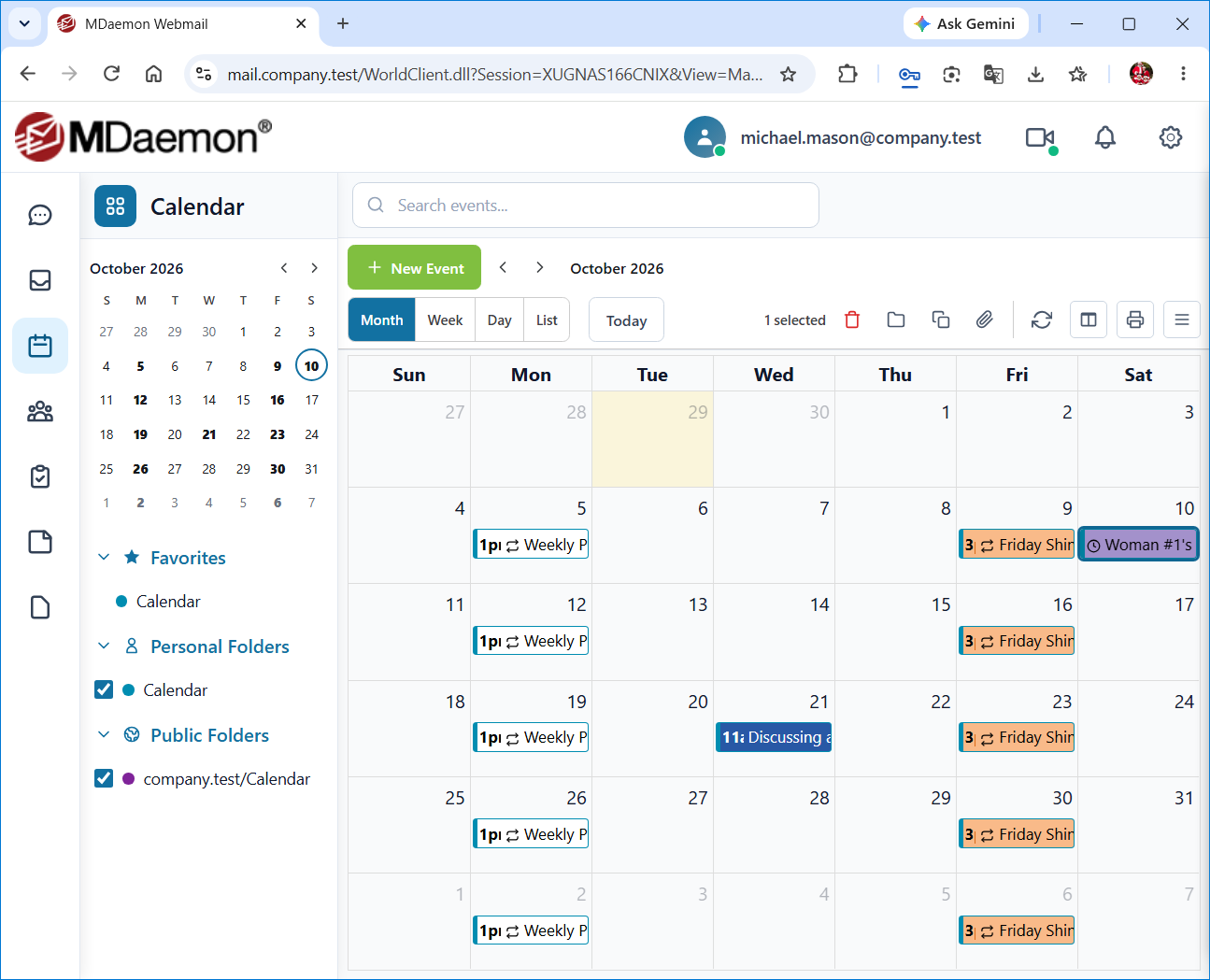
MDaemon Webmail has a complete group-calendaring system that can be used to schedule and review events and meetings, both for you and for your domain's users. You can set each event's time and location, assign categories and a priority level, make it a recurring event, schedule reminders, invite attendees, and more. Further, your calendar folders can be shared with other users, and you can give each user an access permission level: Full Control, Editor, or Reader, or block access altogether. Additionally, events can be marked as Private. Private events can only be seen by you. Other events can be seen by anyone who has permission to view your calendar.
Click New Event to add an event. The calendar can be displayed by Day, Week, or Month, or you can choose List to display a list of your scheduled events. Use Previous and Next to move backward or forward, and click Today to return to the current day, week, or month. On the left there is a small month calendar that you can use to jump to a date, and a list of your calendars, grouped into Favorites, Personal Folders, Shared Folders, and Public Folders. Check the box next to each calendar whose events you want to display. Each calendar's events are shown in that calendar's color. To find an event, type in the Search events... box.
Side-by-Side Calendars
You can view multiple calendars at once, side by side. Check the boxes next to the calendars you wish to view, and then click Side by Side on the toolbar.
Calendar Actions
Use the More actions menu on the toolbar to Export Events or Import Events, Share Calendar with other users, get a Private Access Link to your calendar, Publish Calendar or Publish Schedule so that others can view them, subscribe to External Calendars (and Update External Calendars to refresh them), or Print the calendar. Some of these options may not be available to all users.
Synchronizing with a Smartphone or Email Client
Using ActiveSync
If your device is equipped with an ActiveSync client then you may be able to use that to synchronize your calendar with the device. Follow the links below for instructions on how to synchronize your device with Webmail using ActiveSync:
ActiveSync may not be available for all users.
Using CalDAV
Many calendar applications and devices, such as Apple Calendar on macOS and iOS and Mozilla Thunderbird, can synchronize with your Webmail calendars using CalDAV, if it is enabled for your account. In the application, add a CalDAV account using your email address and password. If the application asks for a server address, ask your email administrator for it.
Using MDaemon Connector
To synchronize your calendar with Microsoft Outlook, use MDaemon Connector, if it is supported for your account.
See Also
