The Message List displays the messages in the email folder that is selected in the Folder List. You can sort the list by Date, Sender, Subject, Size, and more. From here you can mark messages as read or unread, delete messages, move or copy them to another folder, mark them as spam or not spam, or open one of them in the Message View.
Multiple Pages
The Messages Per Page option in the Personalize settings determines how many messages are loaded at a time. In the WorldClient theme, more messages are loaded automatically as you scroll down the list. In the Pro theme, when a folder contains more messages than fit on one page, use the paging tool beneath the Message List: click the outer icons to switch to the first or last page, and the arrows to switch to the previous or next page. The current page and the total number of pages (for example, "2 of 5") are shown between them.
Message List Layout
In the WorldClient theme, use the controls on the right side of the toolbar above the Message List to change which messages are displayed and how they look:
•Filter messages—Choose View All, View Unread, View Flagged, or View Snoozed to display only the messages in that state (e.g. choose View Unread to display only unread messages). The number of matching messages is shown next to each choice.
•Sort messages—Choose the column and the order by which the list is sorted. See Sorting the Message List below.
• Customize Columns—Choose which columns are displayed and the order in which they appear. See Columns.
• View Settings—Opens a window with the options described below.
The View Settings window contains these options:
•Always display messages in multi-line format—Display each message on more than one line, instead of in columns. When the Message Preview pane is displayed on the right (Preview Right), messages are always displayed in multi-line format.
•Show messages as threaded conversations—Group the messages that belong to the same conversation together.
•Message List Headers—Use Underline the From address in the message list and Italicize the To address in the message list to make it easier to tell the sender and recipient addresses apart.
•Message Preview Position—Display the Message Preview pane to the right of the list (Preview Right), below it (Preview Bottom), or not at all (No Preview).
•Message List Density—Choose how much space there is between messages: Compact, Comfortable, or Spacious.
In the Pro theme, click View / Sort on the toolbar, and then click view flagged, view unread, view snoozed, or view all to filter the Message List. The same menu contains the sort options (see below) and Message List Layout, which contains options for the Message Preview position, the Message List Density, multi-line format, and underlining the From address and italicizing the To address.
Sorting the Message List
You can sort the Message List by Date, Sender, Recipient, Subject, Size, Categories, or Flag, in either ascending or descending order. The default sort order is set by the Sort Messages by option in the Personalize settings.
To sort the Message List in the WorldClient theme:
1.Click the sort drop-down on the right side of the toolbar. It shows the column by which the list is currently sorted.
2.Click the column by which you wish to sort the list.
3.Click Ascending or Descending to choose the sort order.
When messages are displayed in columns rather than in multi-line format, you can also click a column heading to sort the list by that column. Click the same heading a second time to reverse the sort order.
To sort the Message List in the Pro theme:
1.Click View / Sort, and then click the column by which you wish to sort the list. The list will be sorted by that column in ascending order from A to Z, 1 to 2, January to December.
2.Click the same option a second time to change the sort order to descending from Z to A, 2 to 1, December to January.
Selecting Messages
Click a message to select it. To select several messages, hold the Control (CTRL) key and click each message, or click the first message and then hold Shift and click the last one. All messages between the two will also be selected. In the WorldClient theme, you can also click the checkbox beside each message. To select all of the messages in the list, click Select All on the toolbar. In the WorldClient theme, click it again (Deselect All) to clear the selection.
Message Status Icons
Messages that you have not read are displayed in bold. The Message List can also display the following indicators next to a message. When messages are displayed in columns, the Replied and Forwarded icons appear in the Status column, which you can add to the list with Customize Columns.
|
You have replied to the message. |
|
You have forwarded the message. |
(!) Urgent |
The message is marked as urgent, or as High Priority. |
|
The message has one or more attachments (paperclip icon). |
|
The message is flagged. Click the flag beside a message to flag or unflag it. |
|
The message is snoozed (clock icon). The time when it will return is shown next to the clock. Click it to remove the snooze. |
|
Displayed next to a message in your Sent Items folder that can still be recalled, such as a message whose delivery was deferred. Click it to recall the message. |
 Replied
 Forwarded
 Attachments
 Flag
 Snoozed
 Recall
Toolbar

In the WorldClient theme, the toolbar above the Message List contains these options:
•Compose—Open the Compose view to write a new message.
•Select All—Select all of the messages in the list, or clear the selection (Deselect All).
•Refresh—Check for new messages.
•Empty Trash—When you are viewing your Trash folder, permanently delete all of the messages in it.
•Import Messages—Import messages (.eml or .msg files) into the current folder, when this option is available.
•Show Snoozed Messages—Show or hide snoozed messages in the list.
When one or more messages are selected, these options also appear:

•Mark as Read and Mark as Unread—Mark the selected messages as read or unread.
•Delete—Delete the selected messages. Depending on your Message Deletion and Hide Deleted Messages settings on the Personalize page, deleted messages will either be moved to your Trash folder or flagged as deleted. To permanently delete messages, delete them again from the Trash folder, use Empty Trash, or use Delete Permanently on the Shortcut Menu. Messages may also be permanently deleted automatically when you sign out from Webmail, depending on your Empty Trash on Sign Out setting, also located on the Personalize page.
•Move to Folder and Copy to Folder—Choose a folder to move or copy the selected messages to.
•Set Categories—Assign one or more Categories to the selected messages.
•Spam and Not Spam—Identify the selected messages as spam (junk email), or as legitimate messages (non-spam). Regularly using this feature can help the server identify these messages for you in the future and filter them accordingly. It can help prevent legitimate messages from being flagged as spam by mistake, and it can help prevent junk email from slipping through to you undetected.
•Toggle Flag—Flag or unflag the selected messages.
The right side of the toolbar contains the filter and sort drop-downs, Customize Columns, View Settings, and the number of messages in the folder. See Message List Layout above.
In the Pro theme, the toolbar contains similar options. When messages are selected, some of them are grouped under Reply Options and Other Actions.
Message Actions
In the WorldClient theme, when you point to a message in the Message List, buttons for the most common actions appear on the right side of that message, so you can act on it without selecting it first:

•Reply and Forward—Open the Compose view to reply to or forward the message.
•Snooze—Hide the message until a time you choose. For a snoozed message, this button is Unsnooze. It appears only when message snoozing is enabled.
•Mark as Read / Mark as Unread—Change the message's read status. The button shows whichever action applies.
•Delete—Delete the message, according to your Message Deletion setting.
•Spam / Not Spam—Identify the message as spam, or as a legitimate message. These buttons appear only when spam reporting is available.
•Flag—Flag the message, or Unflag it if it is already flagged.
Searching the Message List
To search the messages in the current folder, type the text you wish to search for in the Search messages... box above the Message List, and press Enter. The list displays the messages that match, along with the number of results. Click Clear Search to return to the full list.
For more search options, click Advanced next to the search box to open Advanced Search. There you can:
•Search specific parts of the messages: From, To, CC, Subject, Categories, Body, and Attachment (file name).
•Search All Dates, or clear that option and enter Start and End dates.
•Find only messages that Has Attachment, or that are Unread, Flagged, or Snoozed.
•Use Search In to search the Current Folder, All Folders, or the current folder and its Sub Folders.
When you are finished setting your search options, click Search.
To save a search so that you can use it again, fill in the search options in Advanced Search, click Save Search next to the Saved Search list, type a Search Name, and click Save. Your saved searches are listed in the Saved Search list at the top of Advanced Search, and under Saved Searches in the Folder List, where you can run one simply by clicking its name. When you choose a saved search in the Saved Search list, you can change its options and click Update Search, or use Rename or Delete. Click New Search to clear the options and start a new search. There are also options for saved searches in the Folders settings.
In the Pro theme, the search box is located at the top of the page.
Shortcut Menu
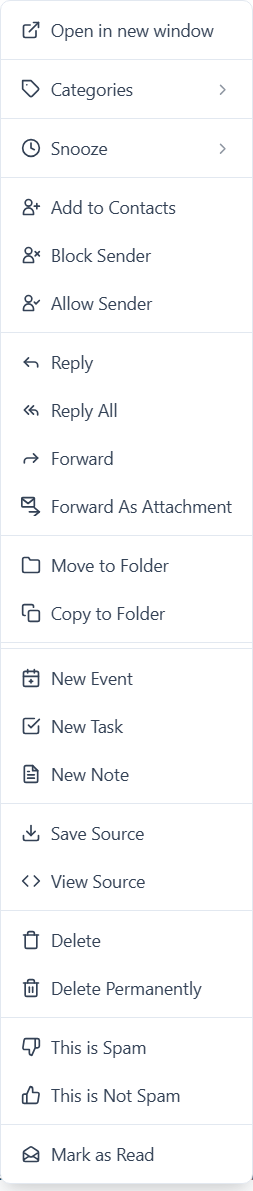
Right-click a message to open a shortcut menu of actions for that message. If several messages are selected, the menu applies to all of them, and options that work with only one message are not displayed. In the WorldClient theme, the shortcut menu contains these options (depending on the message and your settings):
•Open in new window—Open the message in a separate window.
•Categories—Assign one or more Categories to the message.
•Snooze—Hide the message for an amount of time, or until a date and time you choose. The message returns to the folder when the time is up. For a snoozed message, this option is Remove Snooze.
•Add to Contacts—Add the sender to your contacts.
•Block Sender and Allow Sender—Add the sender to your Blocked Senders or Allowed Senders folder.
•Reply, Reply All, and Forward—Reply to the sender, reply to the sender and all recipients, or forward the message.
•Resend—For a message that you sent, send the message again.
•Forward As Attachment—Forward the selected messages as attachments to a new message.
•Move to Folder and Copy to Folder—Move or copy the messages to another folder. After you have moved or copied a message, the menu also offers to move or copy messages to that same folder, so you can quickly send other messages there too.
•New Event, New Task, and New Note—Create a new calendar event, task, or note from the message.
•Save Source and View Source—Download the message as an .eml file, or view the raw source of the message, including all of the message headers and HTML code.
•Delete and Delete Permanently—Delete the messages, or delete them permanently instead of moving them to your Trash folder. Delete Permanently is available when your Message Deletion option is set to Move to Trash.
•This is Spam and This is Not Spam—Identify the messages as spam, or as legitimate messages.
•Mark as Read / Mark as Unread—Change the read status of the messages.
•Undelete—Restore a message that is flagged for deletion. This option is only available when your Message Deletion option is set to IMAP Delete (Mark as Deleted) and deleted messages are not hidden.
•Recall—Recall a message that you sent, if it can still be recalled.
The Pro theme's shortcut menu contains the same actions, with minor differences in wording, and also contains Empty Trash when you are viewing your Trash folder.
When using the Pro theme on a smartphone or tablet, you can open the shortcut menu by selecting a message and tapping the vertical ellipses button in the bottom-right corner.

Mailbox Quotas
If your account has quotas, the WorldClient theme shows how much of your mailbox you are using (for example, "45% used") next to the search box above the Message List. Click it to see your Mailbox Quotas: the Disk Space and number of Messages you are using, and your Daily Limit for sending messages. In the Pro theme, choose Quotas from the same menu that contains the view and sort options.
Checking Your Email
As long as you are signed in, Webmail will automatically check your mailbox for new messages and update the Message List at a prescribed time interval. You can set the interval (List Refresh Time) on the Personalize page. You can also check for new messages at any time by clicking Refresh on the toolbar.
See Also
