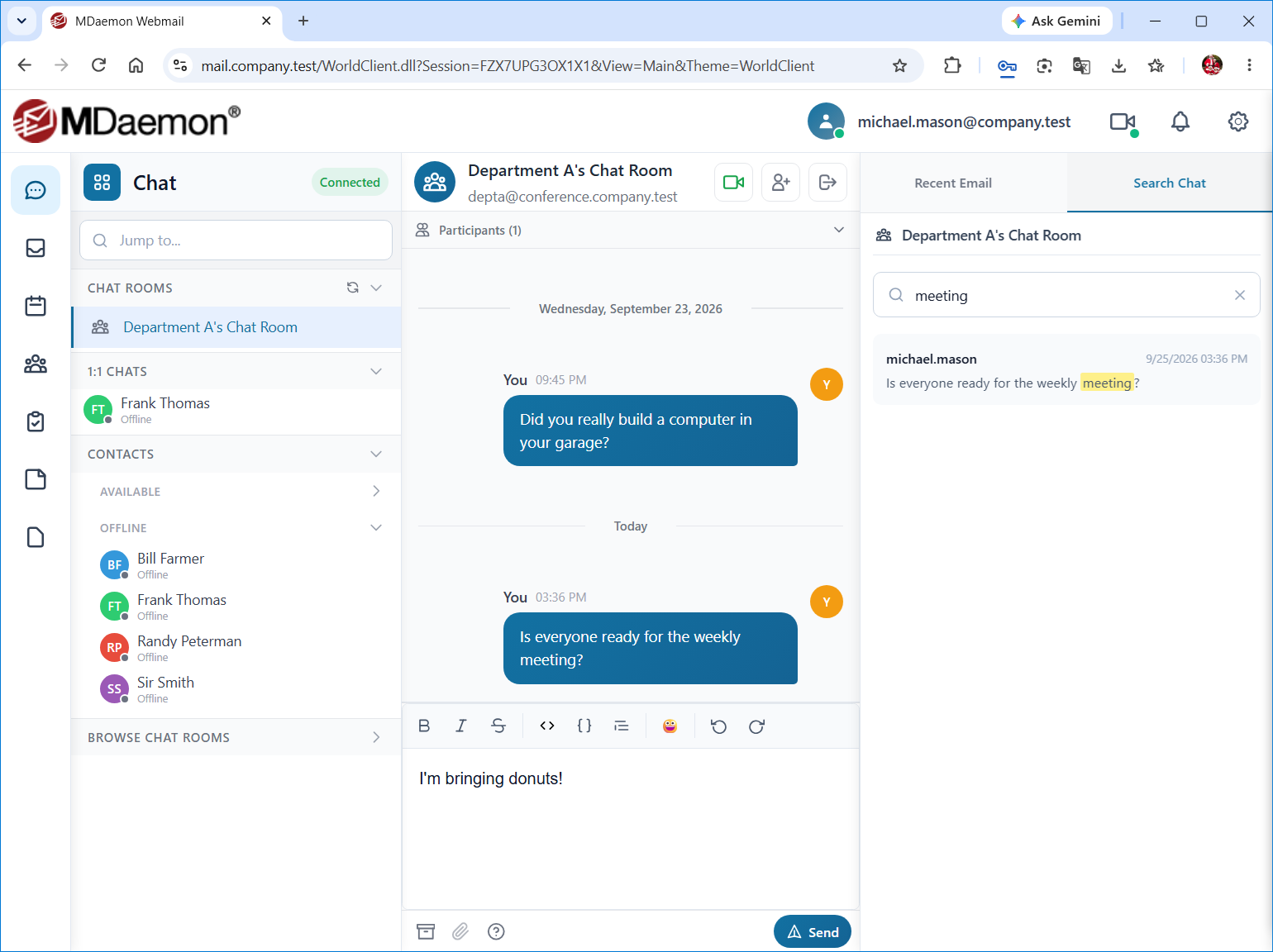
The Chat page is Webmail's built-in instant messaging feature, available in the WorldClient theme. You can chat one-on-one with other users, hold group conversations in chat rooms, share files, react to messages, and start an audio or video call with one click. To open it, click Chat in the left menu. If you do not see that option, chat is not enabled for your account.
The page is divided into three parts: the conversation list on the left, the conversation you are viewing in the center, and a side panel on the right that shows your recent email and lets you search the conversation's history.
Your Chat Status and Profile
Click your email address in the upper right corner of Webmail to see your Chat Status options: Available, Away, Do Not Disturb, Extended Away, or Appear Offline. Your contacts see your status as a colored dot beside your name. The same menu contains Disconnect from Chat, which signs you out of chat while you remain signed in to Webmail (click Connect to Chat to sign back in), and My Profile, which displays the contact details that other chat users can see. Click Edit my profile to change your name, nickname, email address, phone number, or photo.
The Conversation List
The conversation list on the left side of the page is divided into four sections. Click a section's heading to expand or collapse it.
•Chat Rooms — The chat rooms you have joined.
•1:1 Chats — The people you have had one-on-one conversations with. Notifications sent to you by the mail server can also appear here; these are read-only conversations that you cannot reply to.
•Contacts — Your full list of chat contacts and their current status, organized by group. This section is collapsed by default.
•Browse Chat Rooms — Chat rooms that are available for you to join. This section is collapsed by default.
Each conversation and section heading shows how many unread messages it contains, and a New messages line inside a conversation marks where your unread messages begin. Press Alt+Down Arrow or Alt+Up Arrow to go to the next or previous conversation that has unread messages. To see the options for a conversation, contact, chat room, or group, right-click it or click its More options (three dots) icon.
Finding a Person or Chat Room
Click the Jump to... box at the top of the conversation list, or press Ctrl+K, and start typing a name. The matches include your conversations, contacts, and chat rooms, as well as other users in your organization's directory. Use the arrow keys to highlight a match and press Enter, or click the match, to open that conversation.
Starting a One-on-One Conversation
To chat with someone, click their name in the 1:1 Chats or Contacts section, or right-click a contact and click Open Chat. You can also use the Jump to... box to find anyone in your organization's directory.
Managing Contacts and Groups
Click the Add (+) icon on the Contacts heading to see these options:
•Add Contact — Add a contact by entering the person's chat address and, optionally, a display name.
•Create Group — Create a group, give it a name, and choose the contacts to put in it.
•Search directory — Search your organization's directory for people to add as contacts.
Depending on your server's configuration, your contact list may be managed for you automatically, in which case the Add Contact and Search directory options are not available.
Right-click a contact to open a chat with them, to View Profile (their contact details), or to use Add to Group and Remove from Group to change the groups they belong to. You can also drag a contact onto a group's heading to add them to that group. Right-click a group's heading to Edit Group, Rename Group, or Delete Group. Deleting a group does not remove its contacts.
Chat Rooms
A chat room is a group conversation that several users can take part in at the same time.
Creating a Chat Room
To create a chat room:
1.Click the New Chat Room (+) icon on the Chat Rooms heading.
2.Enter a Chat Room Name and, optionally, a Description.
3.(Optional) Enter a Password that users must enter to join the room. Leave it blank for a public chat room.
4.(Optional) Click Members only if only invited members may join the room, and click Private (hidden) if the room should not appear in the list of chat rooms that others can browse.
5.(Optional) Under Invite Contacts, select the contacts you wish to invite.
6.Click Create Chat Room.
If there is no New Chat Room icon, your account is not permitted to create chat rooms.
Joining a Chat Room
Expand the Browse Chat Rooms section and click a chat room to preview it, and then click Join Chat Room. If the room is protected by a password, you will be asked to enter it. After you join a room, it is listed in your Chat Rooms section.
Working in a Chat Room
When a chat room is open, click Participants below the room's name to see who is in the room. Use the icons at the top of the room to Invite Contacts to the room, Edit Chat Room (to change its name, description, password, and members, if you have permission to do so), or Leave Chat Room. These options are also on the room's right-click menu in the conversation list, along with Delete Chat Room when you are permitted to delete the room. Deleting a chat room removes all of its participants and permanently deletes the room.
Sending and Managing Messages
Type your message in the box at the bottom of the conversation and press Enter to send it; press Shift+Enter to start a new line. If you have turned off the Enter to Send option in your Chat settings, click Send instead. While someone is typing a message to you, a typing indicator appears below the conversation.
Click the Formatting help (?) icon below the message box to see how to format your text. Surround text with asterisks for *bold*, underscores for _italic_, tildes for ~strikethrough~, or backticks for `code`, and start a line with > to quote it. In a chat room, type @ followed by part of someone's name, and then choose them from the list, to mention them. Messages that mention you are highlighted.
Hover over a message to see the actions you can take on it:
•Add Reaction — Add an emoji reaction to someone else's message. Choose one of the common reactions, or click + to see more. Reactions appear below the message with a count; click a reaction to add or remove your own.
•Reply — Reply to the message. Your reply includes a quote of the original, which anyone can click to jump to that message.
•Edit message — Change a message you sent. The message is then marked as Edited.
•Delete message — Delete a message you sent. Everyone in the conversation sees a notice that the message was deleted.
In one-on-one conversations, checkmarks beside your messages show whether each one has been sent, delivered, or read. If your server allows it, the area below the message box also contains an icon that stops the server from archiving the messages you send. Those messages are marked Message not archived and are not kept in the conversation's history. You can also control this with the Prevent the server from archiving messages option in your Chat settings.
Sharing Files
To send a file, click the Attach file (paperclip) icon below the message box and choose one or more files, drag the files onto the conversation, or paste an image into the message box. You can send up to 10 files at a time, and your server may limit the size of each file. The files are listed above the message box until you click Send. Images are shown as previews in the conversation. Hover over a shared file to Download it or copy a link to it, and click Delete attachment to delete a file that you sent. If your server does not support file sharing in chat, the Attach file icon is unavailable.
Audio and Video Calls
When Web Conference is enabled for your account, you can call people directly from a conversation. In a one-on-one conversation, click the Audio Call or Video Call icon at the top of the conversation. The Web Conference window opens and places the call, with your camera off for an audio call or on for a video call. These icons are available only when the contact is online and able to receive calls. In a chat room, click Start Conference Call to start a web conference with the room's participants.
The Side Panel
The panel on the right side of the page has two tabs: Recent Email and Search Chat. If your browser window is too narrow to show the panel, click the Search Chat icon at the top of the page to display it.
Recent Email
This tab lists new email messages as they arrive in any of your folders, so that you can keep up with your email without leaving Chat. The tab shows how many new messages are waiting. Double-click a message to open it in a new window. Hover over a message for quick actions such as Open in new window and Hide (which removes it from this list), and right-click it for more options, such as replying to, forwarding, flagging, snoozing, or deleting the message.
Search Chat
Use this tab to search the message history of the conversation you have open. Type the words to search for, and then click a result's Go to message arrow to jump to that message in the conversation. Click Load more results to see older matches.
Chat Settings
Use the Chat settings to control options such as typing indicators, the Enter to Send option, delivery and read receipts, mention notifications, message formatting, and image previews. Use the Notifications settings to choose whether to display desktop notifications and play a sound when a chat message arrives.
See Also
