Voice Recorder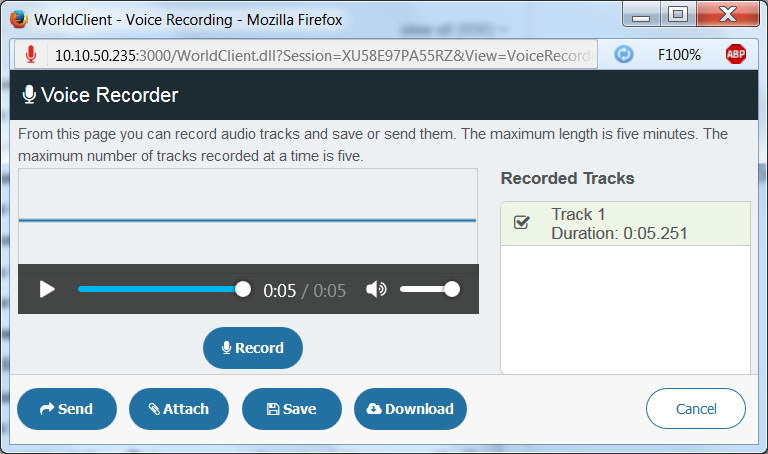
Available in the Pro theme, Voice Recorder lets you make a short voice recording and then send it to someone in an email, save it to your Documents folder, or download it to your computer. To open it, click the Voice Recorder (microphone) icon in the navigation bar. Voice Recorder requires a microphone and a secure (HTTPS) connection, is only available in certain browsers, and may not be available for some users or compatible with some hardware.
A voice recording session is limited to five tracks of five minutes each. If you attempt to record more than five tracks, the Replace a Track dialog asks you to choose which recorded track to replace; select it and click Replace. If you do not wish to lose a track then you must first save or download it, because one of the working tracks will always be replaced when attempting to record more than five tracks. Further, when you close Voice Recorder, all active tracks in the session are lost.
Recording a Voice Memo
To check your microphone first, use Adjust Record Volume and Test Audio. To record your voice memo, click Record. During recording, click Pause Recording if you wish to pause the recording and Resume Recording to resume recording. When you are finished, click Done. When recording is stopped (either automatically or by you), the track is converted to an mp3, uploaded to the server, and listed under Recorded Tracks. Each track has buttons to play it and four other options:
Send
Click the send button to use the Attach and Send dialog to send the recording in an email message from your MDaemon Webmail account. The dialog includes To, Cc, Bcc, Subject, and Message Body. Only the To is required. If you leave the rest blank, generic Subject and message body phrases will be used in the message. Click Send to send it.
Attach
Click the attach button to open the Compose page with the recording attached to it.
Save
Click the save button to save the recording to your default Documents folder.
Download
Click the download button to download the recording to your computer.
Voice Recorder can only act on one track at a time. For example, it can only attach one track to a message. If you wish to attach multiple tracks, you will need to save each track to your Documents folder and then manually attach them to the message.
See Also